ONE KEYBOARD · ONE MOUSE · TWO COMPUTERS
Two computers.
One effortless flow.
Glide your pointer from one computer to the other and your keyboard follows. MousePass connects your Windows, Mac, or Linux computers directly over USB—without installing MousePass software for everyday use or pressing a switch.
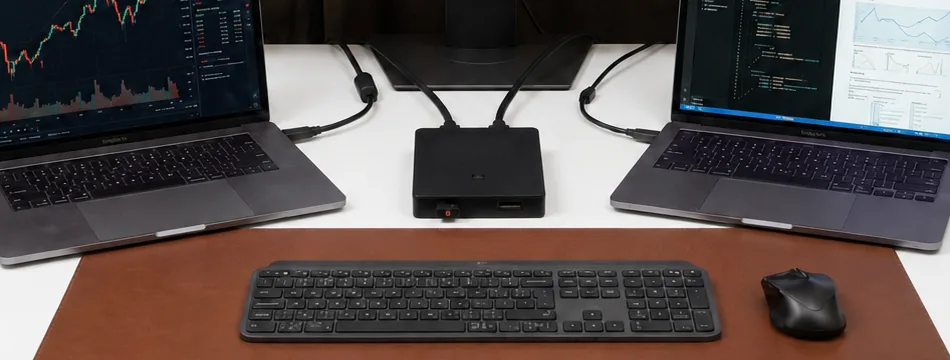
- Computer A
- Computer B
- MousePass
THE INTERRUPTION
Two computers, one desk, and a small tax on every switch.
A work machine and a personal machine at the same desk usually means two keyboards fighting for space, a button switch you have to reach for, or an input-sharing application you have to install, configure and keep running on both computers. Each of those puts a deliberate step between you and the other screen.
MousePass removes the step. Push the pointer off the edge of the screen toward your other computer and it crosses over, and the keyboard follows the same instant. There is nothing to click, nothing to launch, and nothing installed on either computer for everyday use.
Move across. The keyboard follows.
HOW IT WORKS
Plug in. Arrange once. Forget the switch is there.
Connect Computer A
Run a USB cable from one of the unit’s two computer ports to your first computer.
Connect Computer B
Run the second cable from the other computer port to your second computer.
Plug in your keyboard and mouse
Your own USB keyboard and mouse go into the unit’s two accessory ports. The computers power the unit over USB.
Glide, or press the hotkey
Push the mouse off the screen edge toward your other computer, or press Left Ctrl + Caps Lock to jump straight across.
ON A REAL DESK
Built for two-computer desks.
A work machine and a personal machine, three monitors between them, and a single keyboard and mouse in front of you. MousePass sits in the middle of it, powered by the two computers it connects.
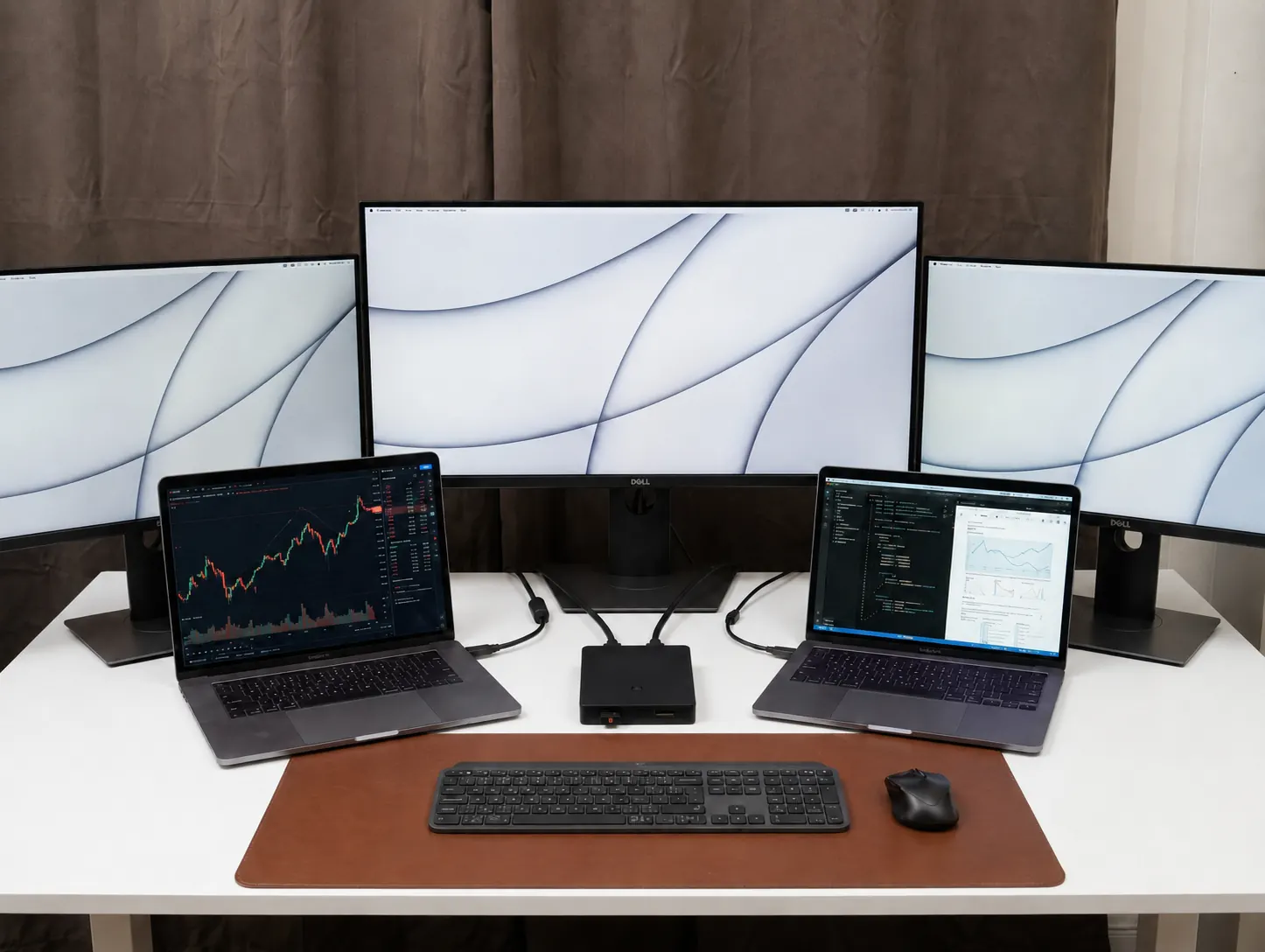
ARRANGE YOUR SCREENS ONCE
Your desk, drawn once.
MousePass has no software on your computers, so it cannot see how your monitors are arranged. You tell it, once. Enter config mode with Left Ctrl + Right Shift + C, then O, and a small drive appears with the Layout Designer on it. Drag the screen blocks until they match your real desk, set the operating system for each computer, and apply. The arrangement is stored on the unit itself.
Multiple monitors on each side
Place your screens side by side and the pointer crosses at the right edge, at the right height, even when the monitors are different sizes.
One vertical column per computer
Push up or down to reach screens stacked above and below the main row. A monitor above and a laptop below can sit in the same column, and each computer supports one column.
Saved presets for a shared monitor
If a monitor moves between computers on an HDMI switch, save both arrangements and flip between them with Left Ctrl + Right Shift + P.
The Layout Designer lives on the device and opens in Chrome or Edge. Once applied, it is not needed again.
The one switch point
- PC A · Windows
- PC B · macOS
- The one switch point
- Starred screen = that computer’s primary display
WHY HARDWARE
Direct USB switching. No network-based input handoff.
Nothing installed for everyday use
MousePass appears to each computer as an ordinary USB keyboard and mouse, so there is no MousePass application or driver on either machine, and no admin rights are needed to use it.
Direct USB switching
Keyboard and mouse input travels through the unit’s own USB connections rather than over your LAN or Wi-Fi. Your employer’s USB and device policies still apply.
USB powered
The two connected computers power the unit. No mains adapter, no battery, no extra cable on the desk.
Windows, macOS and Linux
Use any two-computer combination: Windows with Mac, Mac with Linux, or two Windows machines. You tell MousePass which operating system is on each side once, in the Layout Designer.
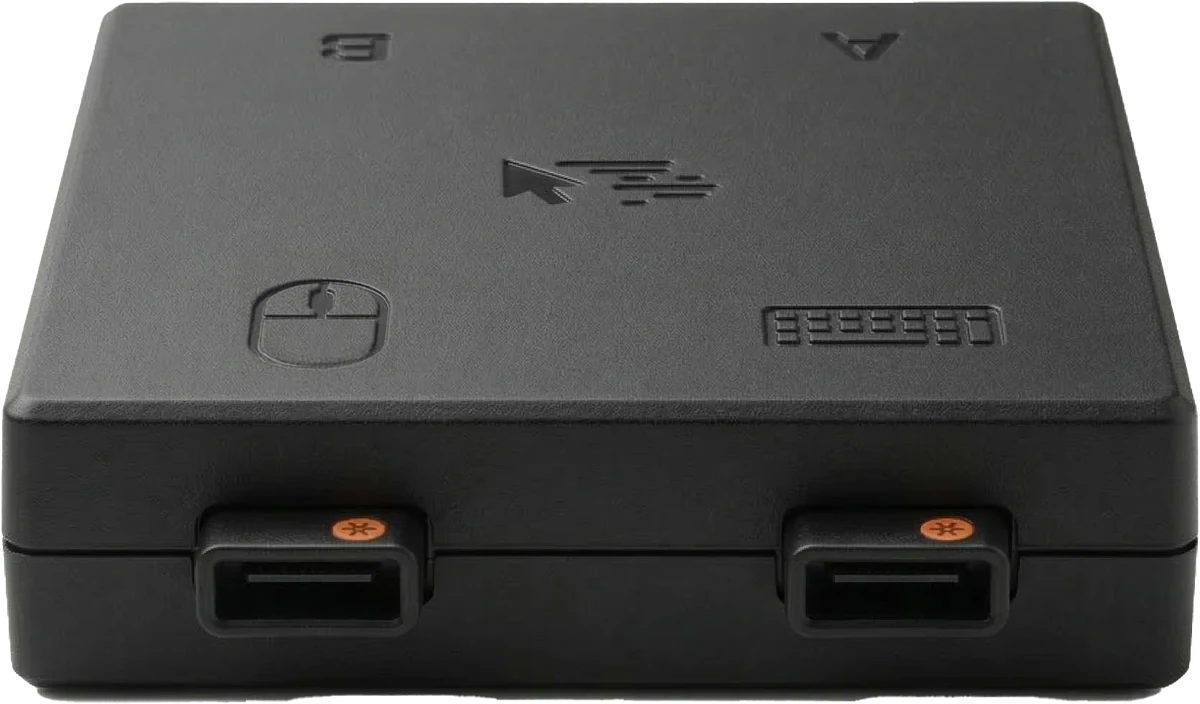
- Computer AUSB cable to your first computer
- Computer BUSB cable to your second computer
- KeyboardYour own USB keyboard
- MouseYour own USB mouse or receiver
THE ESSENTIALS
One clean box between two computers.
- Computers
- Exactly two (A and B)
- Your peripherals
- One USB keyboard and one USB mouse
- Ports
- Two computer ports, two keyboard/mouse ports
- Power
- USB powered by the connected computers
- Operating systems
- Windows, macOS and Linux, in any two-computer combination
- Switching
- Pointer across the screen edge, or Left Ctrl + Caps Lock
- Setup
- On-device Layout Designer, opened once in Chrome or Edge
HOW IT COMPARES
Three ways to work across two computers.
The differences that matter, stated plainly. Software input sharing and button switches both suit some desks better than others.
| MousePass | Software input sharing | Button switch | |
|---|---|---|---|
| How you switch | Move the pointer across the screen edge, or press a hotkey | Move the pointer across the screen edge | Press a button on the unit |
| Software on each computer | None for everyday use | An application installed on every computer | None |
| How input travels | Directly over USB | Over your local network | Directly over USB |
| Monitor video | Not switched; your displays stay as they are | Not switched | Some models also switch video |
| Computers supported | Exactly two | Varies by application | Varies by model |
| One-time setup | Layout Designer on the device, opened in Chrome or Edge | Installed and configured on each computer | None |
COMPATIBILITY AND LIMITS
What MousePass does, and what it does not.
MousePass works with Windows, macOS and Linux in any two-computer combination. These are the boundaries worth knowing before you buy.
Two computers, not three
MousePass links exactly two computers, A and B. A third would need different hardware.
Keyboard and mouse, not video
MousePass switches your keyboard and mouse. It does not switch monitor video, so your displays stay connected exactly as they are.
The handoff monitor must be primary
On each computer, the screen where the pointer crosses over has to be set as that computer’s primary display in Windows or macOS display settings. Otherwise the pointer lands on the primary screen instead.
Setup needs Chrome or Edge
The Layout Designer uses a browser-to-USB feature that only Chrome and Edge support. Everyday use needs no browser at all.
Documented layout geometry
Screens side by side on each computer, plus one column of screens stacked above and below the main row. That is one column per computer: a stack hanging off a second screen is not supported by the shipping firmware.
Your workplace rules still apply
MousePass is a USB device. Whatever USB and device policies your employer sets on a work computer continue to apply to it.
QUESTIONS
Before you buy.
Does MousePass switch monitors or video?
No. MousePass switches your keyboard and mouse between two computers. It does not switch monitor video, and your displays stay connected to their computers exactly as they are.
Do I install software?
Not for everyday use. MousePass appears to each computer as an ordinary USB keyboard and mouse, so there is nothing to install and no admin rights needed. The one-time screen-layout setup uses a page stored on the device itself.
Does MousePass use my network for switching?
No. Keyboard and mouse input travels through the unit’s own USB connections: direct USB switching, not network-based input sharing. Your employer’s USB and device policies still apply to it as they would to any USB device.
Which operating systems are supported?
Windows, macOS and Linux, in any two-computer combination. You set the operating system for each side once in the Layout Designer so the pointer behaves correctly on both.
Which multi-monitor arrangements are supported?
Monitors side by side on each computer, plus one vertical column per computer holding screens above and below the main row, such as a monitor above it and a laptop below it. Different monitor sizes are handled, so the pointer stays level when it crosses from one computer to the other.
Why must the handoff monitor be the primary display?
MousePass hands the pointer to the other computer at a known point on that computer’s primary display, because the operating system maps incoming pointer positions there. If a different screen is primary, the pointer arrives on that screen instead. Set the screen where you cross over as primary in Windows or macOS display settings.
Can it connect a third computer?
No. MousePass is designed for exactly two computers. There is no third port and no way to chain a third machine.
What browser is needed for initial layout setup?
Chrome or Edge, because the Layout Designer talks to the device using a browser-to-USB feature only those browsers support. You only need it while arranging your screens; everyday switching needs no browser.
Can I switch without moving the mouse?
Yes. Press Left Ctrl + Caps Lock to jump straight to the other computer. The keyboard follows the pointer either way.
GET MOUSEPASS
Two computers. One effortless flow.
MousePass is sold and delivered through Amazon UK. The listing has the current price, delivery options and returns.
Buy on Amazon