Can I use a wireless keyboard and mouse?
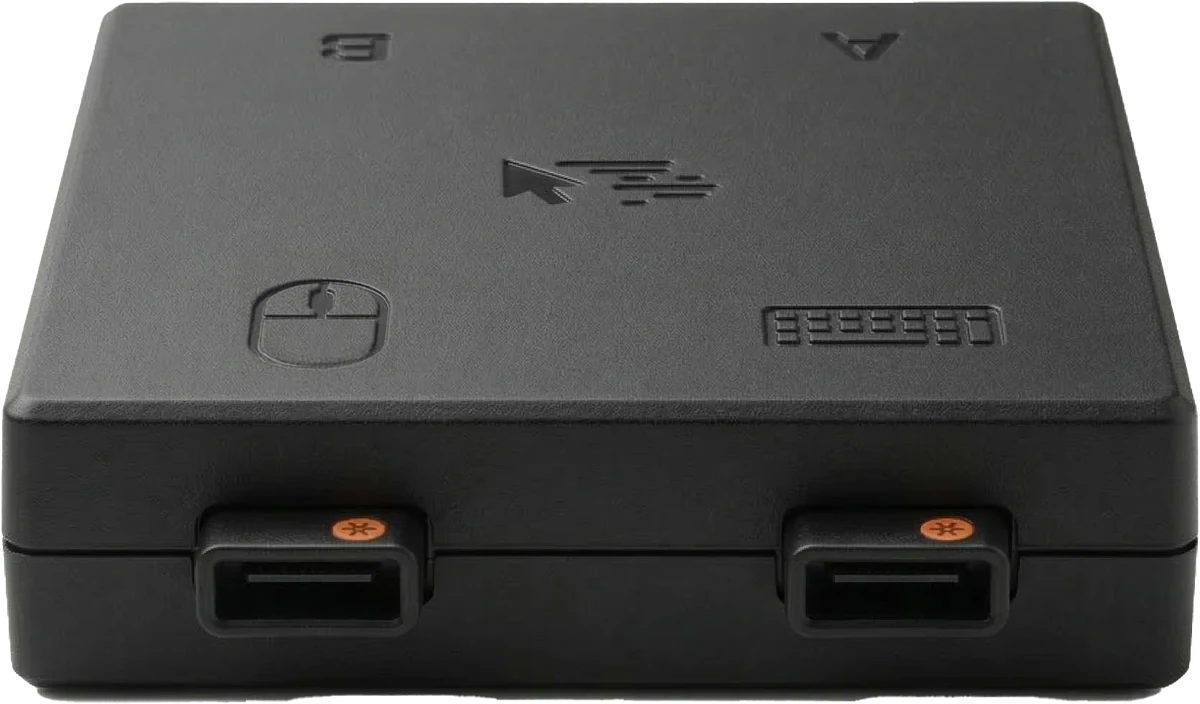
Compatible wireless devices can connect through their USB receivers plugged into MousePass. The two computers still connect to MousePass by USB cable. Bluetooth-only devices that pair directly with a computer are not the same as USB-receiver devices; check your keyboard and mouse connection type.
Does it share files or copy and paste?
No, by design. MousePass shares keyboard and mouse control, but does not transfer files or clipboard contents between computers. This separation is deliberate, especially when using a company computer alongside a personal one.
Can I use it with my work laptop and personal computer?
Yes. MousePass carries keyboard and mouse input over direct USB connections, not between the computers over the network. Your company’s USB and device policies still apply.
Do I need software, drivers or admin rights?
No. MousePass appears as a standard USB keyboard and mouse. Initial monitor setup opens from the device itself in Chrome or Edge; nothing is installed.
Will it switch the picture on my monitor?
No. MousePass switches one keyboard and mouse between exactly two computers. Displays remain connected as they are. The display used for crossing must be set as primary on each computer.
Can MousePass handle a monitor that switches between computers?
Yes. Save both desk arrangements in MousePass, then use a hotkey to change to the matching layout after switching the monitor’s HDMI input.
What does Keep Awake do?
Keep Awake gently moves the pointer when a computer is idle to help prevent sleep or screen lock.
It sends standard USB mouse input directly from the device. No MousePass software or background app is needed.
- Set each computer separately: off, while you use the other computer, or whenever idle.
- Choose when it starts with an adjustable idle delay.
- Turn it on or off instantly with a keyboard shortcut.
Check company IT policy before using it on a work computer.